

Trading 212 Export Guide
Step-by-step instructions to export your transaction data from Trading 212
Exporting Your Files from Trading 212
As of 2024
Important Notes:
- Currently, they only allow max 1 year increments
- Remember, you need to import ALL of your transactions to simplecgt
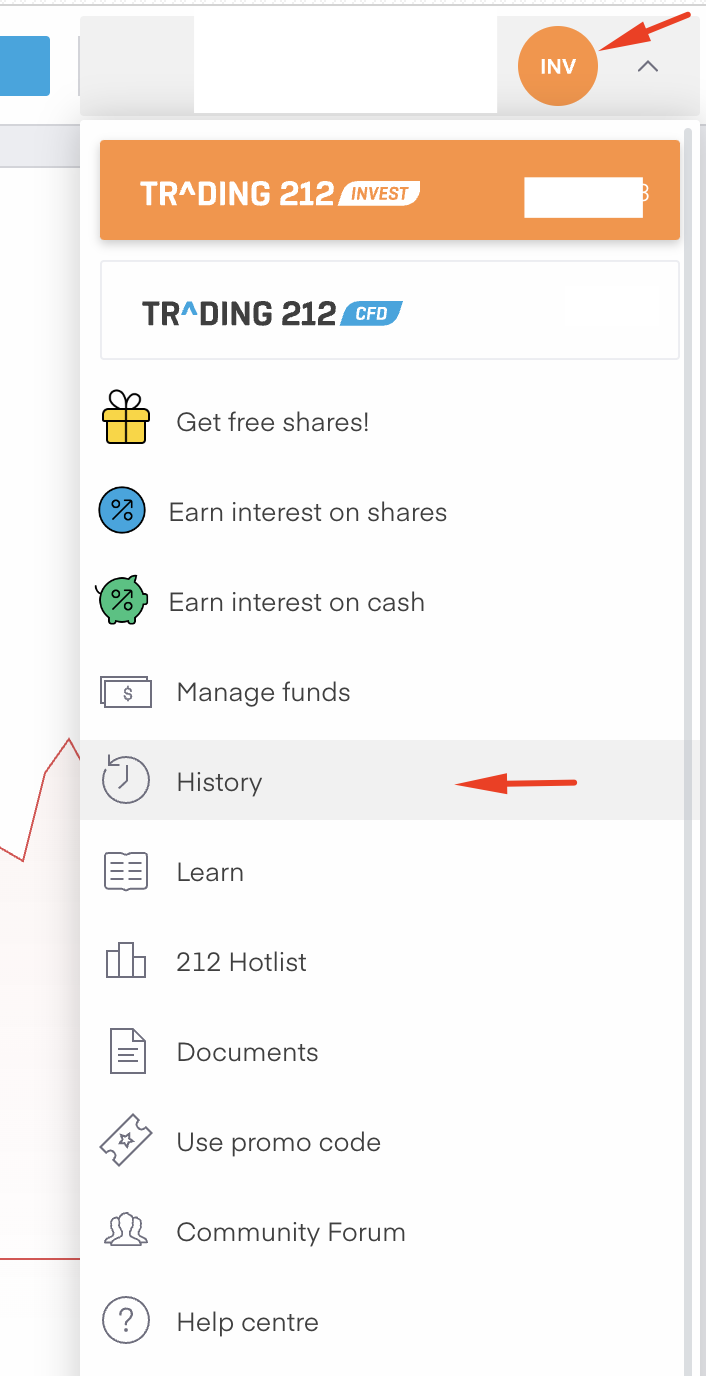
Step 1: Access Your History
Under your avatar (top right) click History.
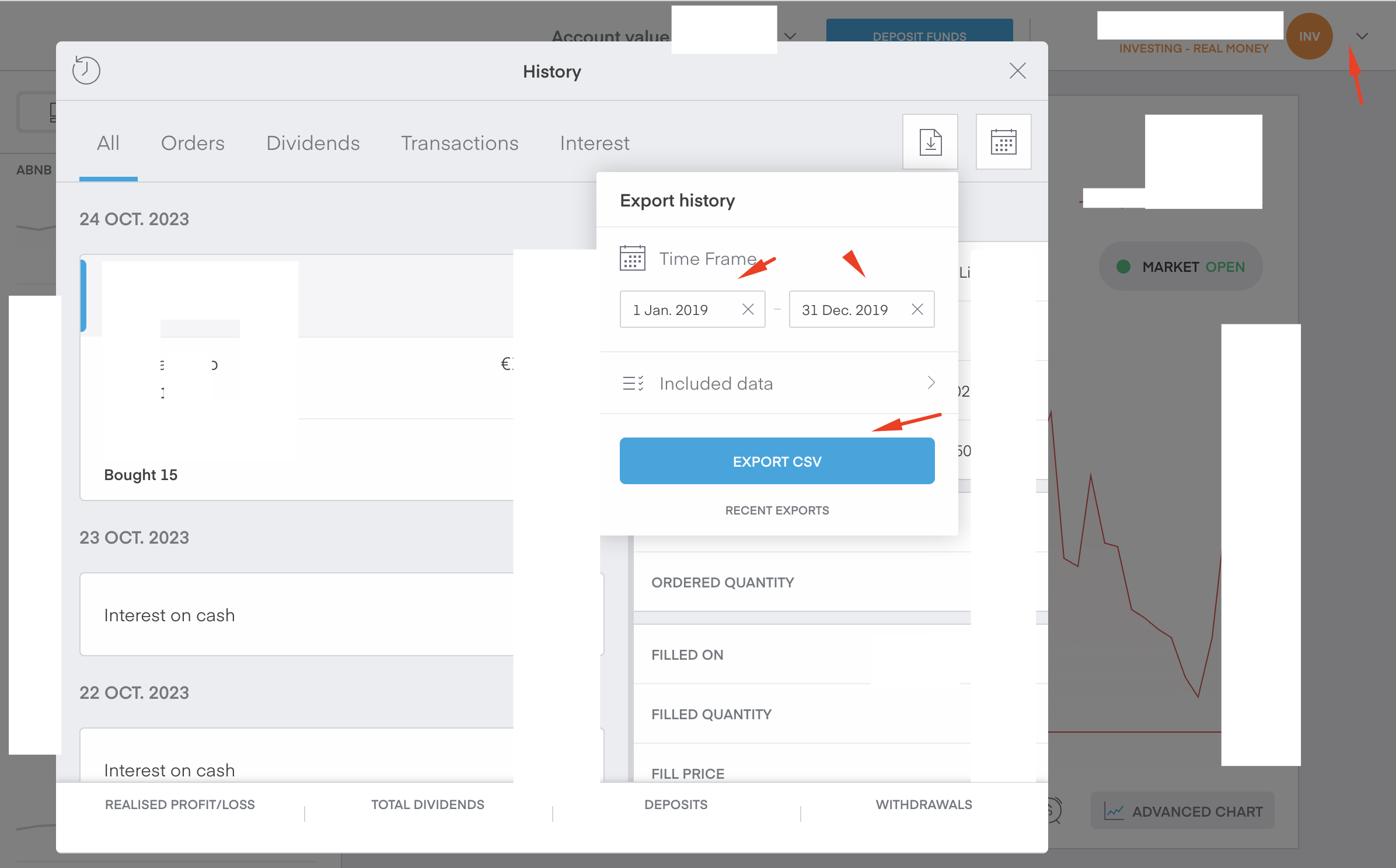
Step 2: Set Timeframe and Export
Under "All", click the calendar icon to set the timeframe of transactions you want. Click Export.
Important Notes:
- Currently, they only allow max 1 year increments
- Remember, you need to import ALL of your transactions to simplecgt
Step 3: Download Your File
Click Download to download your file.
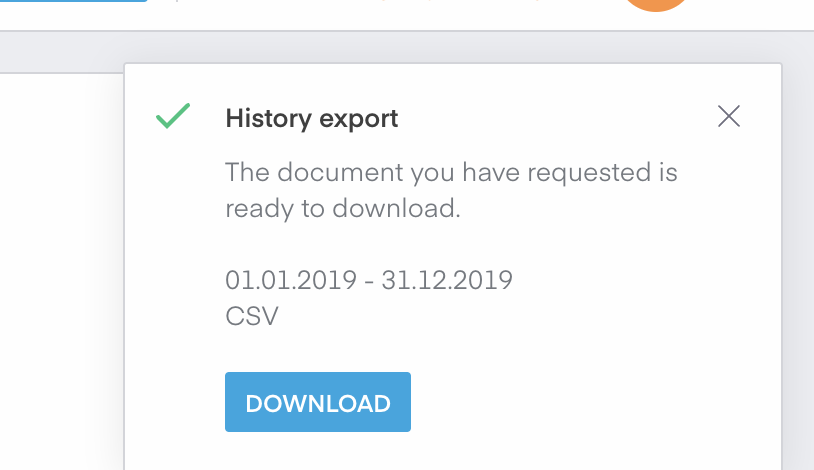
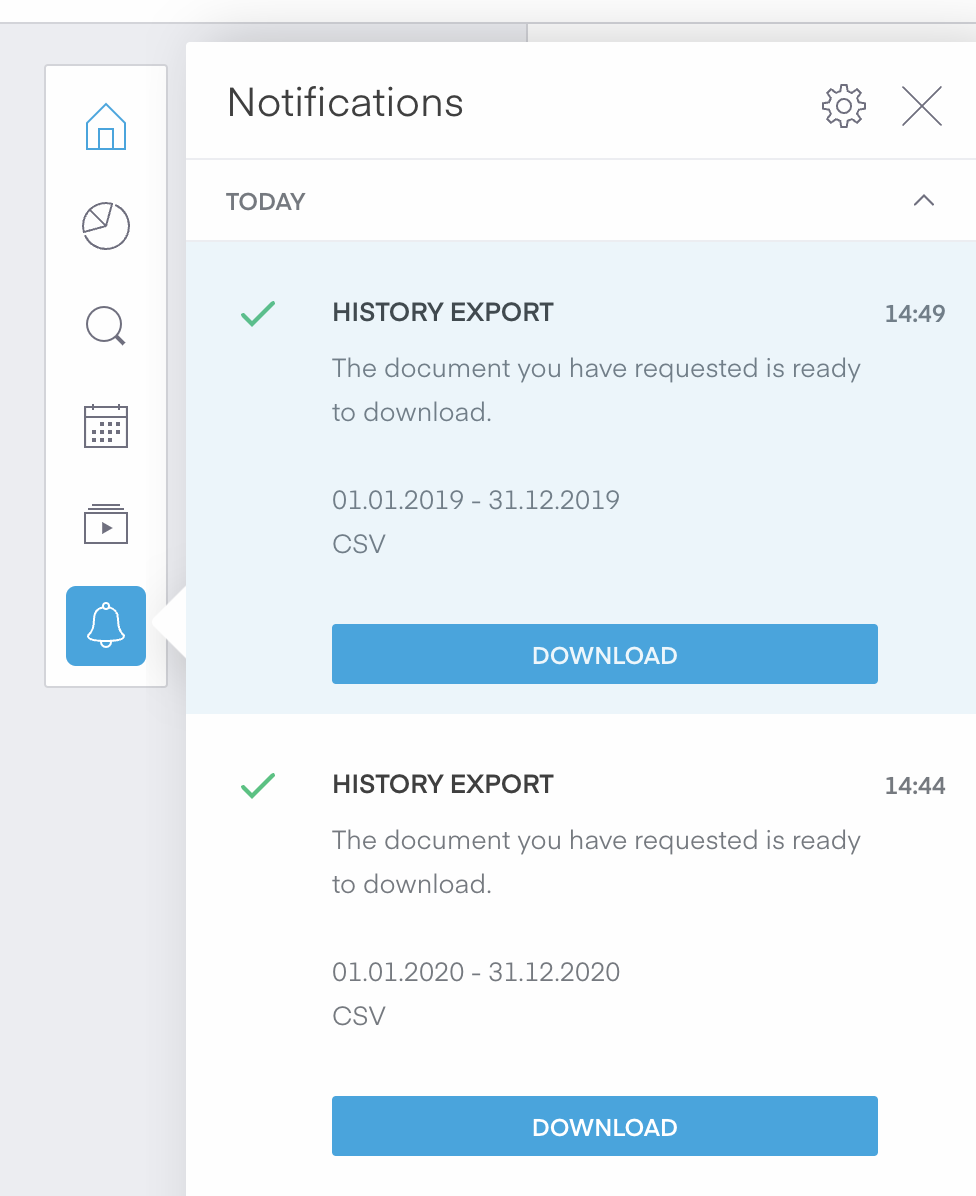
Download Process: Once the file is ready, there will be a popup. If you miss the popup, you can access it from the notifications panel on the left (the bell icon).
Step 4: Repeat for All Years
Complete Export Required: Repeat this process until you have all transactions exported. You need to export each year separately due to Trading 212's 1-year limit.
Ready for Import: Once you have all your transaction files exported, you are now ready to import them into simplecgt using our File Imports feature.